Guide for transcribers
Opening the Well is a website where volunteers transcribe recordings in Scottish Gaelic. To become a volunteer transcriber you need to register first. Once you have registered you must log in using your e-mail address and password. Then you can start transcribing.
Choosing what to transcribe
After log-in, head to the Available for transcription tab on the homepage. This tab lists the recordings you can choose to work on. You will see that the recordings are graded by difficulty, from Easy to Expert.
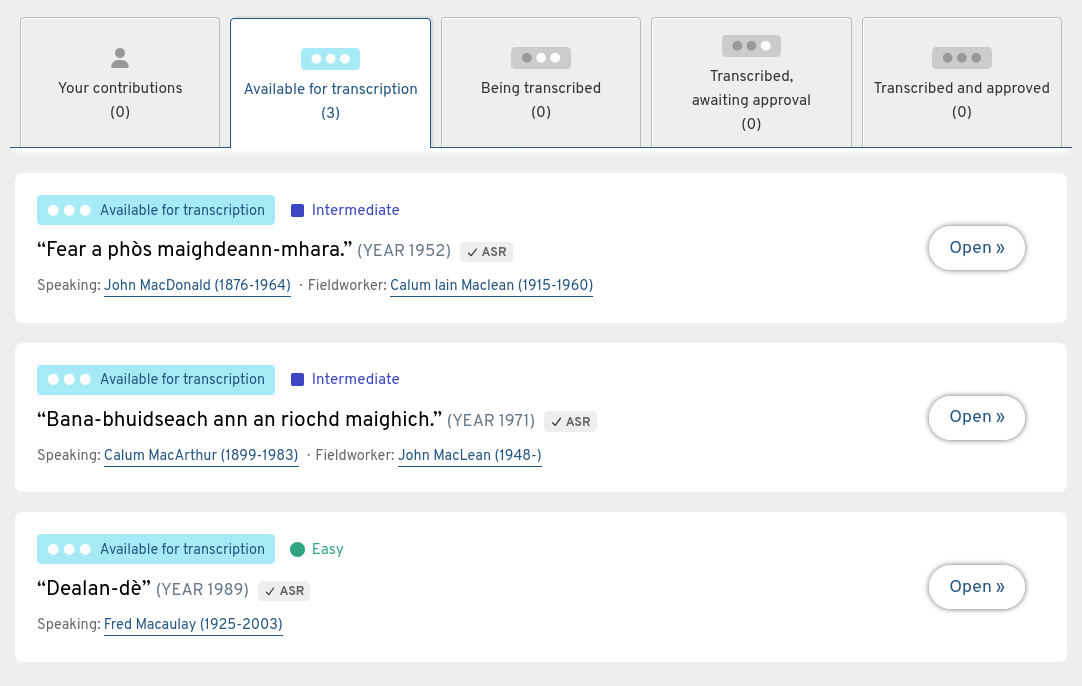
The Open button next to each recording takes you to a page where you can listen to it. Once you have found a recording you want to work on, click the Start transcribing button.
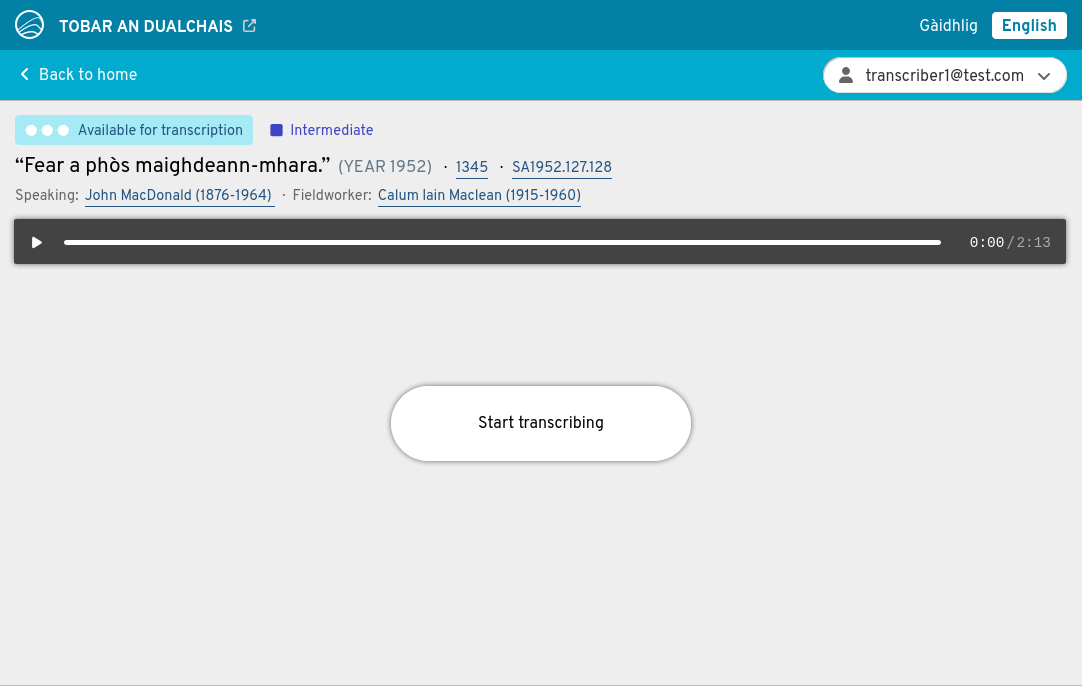
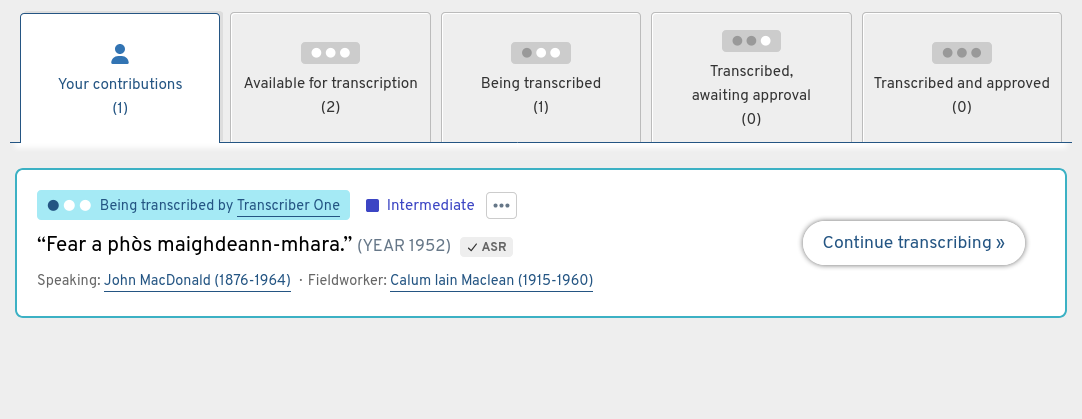
From that moment, the recording will be yours and yours only to work on. You can take as much time as you want to do the transcription, you do not have to do it all in one go. Whenever you come back to Opening the Well’s homepage, you will see your unfinished transcriptions under the Your contributions tab, and you can continue where you left off.
How to transcribe
Transcribing means listening to what people are saying in the recording and writing it down into the large white textbox. The best way to do that is bit by bit: you listen for a few seconds, stop the playback, write down what you have heard, then continue the playback for another few seconds, and so on. Here’s how you can start:
- Place the cursor in the white text box.
- Press
Ctrl+Spaceto start playback and listen to a few words. - When you have heard enough, press
Ctrl+Spaceagain to stop the playback. - Write down what you have heard.
- Press
Ctrl+Mto insert a timestamp. - Repeat from step 2.
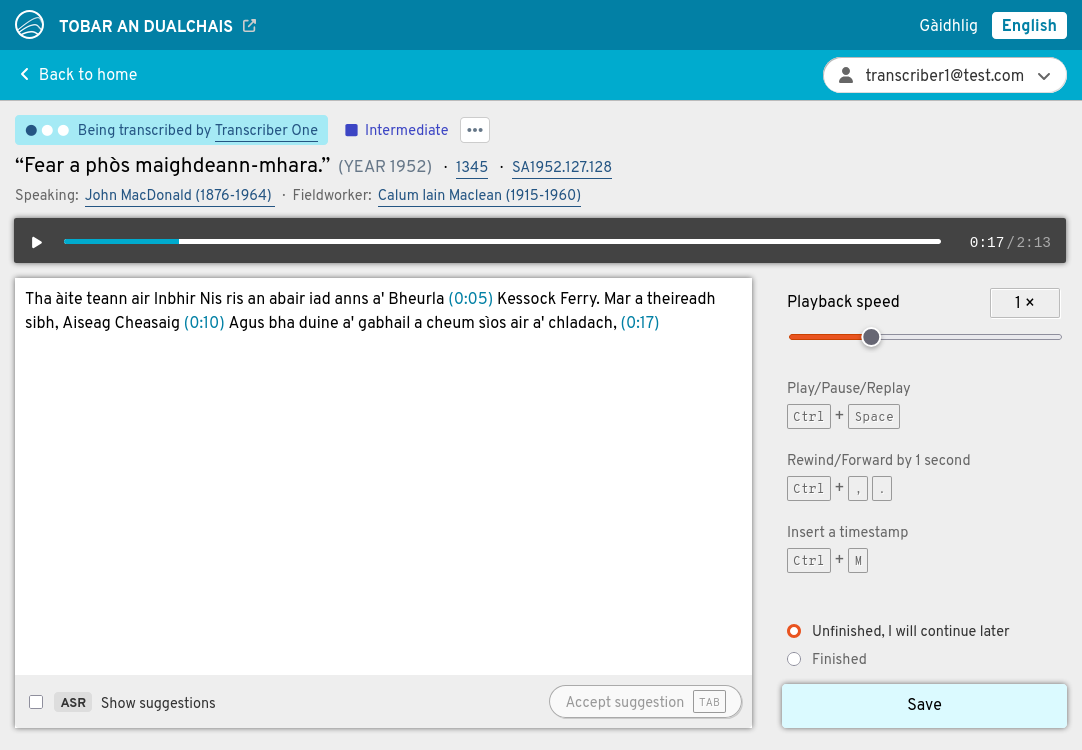
What are the timestamps for?
You can insert timestamps as frequently or as infrequently as you like. Their purpose is to help you synchronise what you are hearing with what you are writing and reading.
If you want to listen again to something you have just heard, simply press Ctrl + Space to stop the playback and then Ctrl + Space again to restart the playback. Playback will restart from the nearest timestamp to the left of your text cursor. This way, you can listen to the same segment again and again just by pressing Ctrl + Space repatedly.
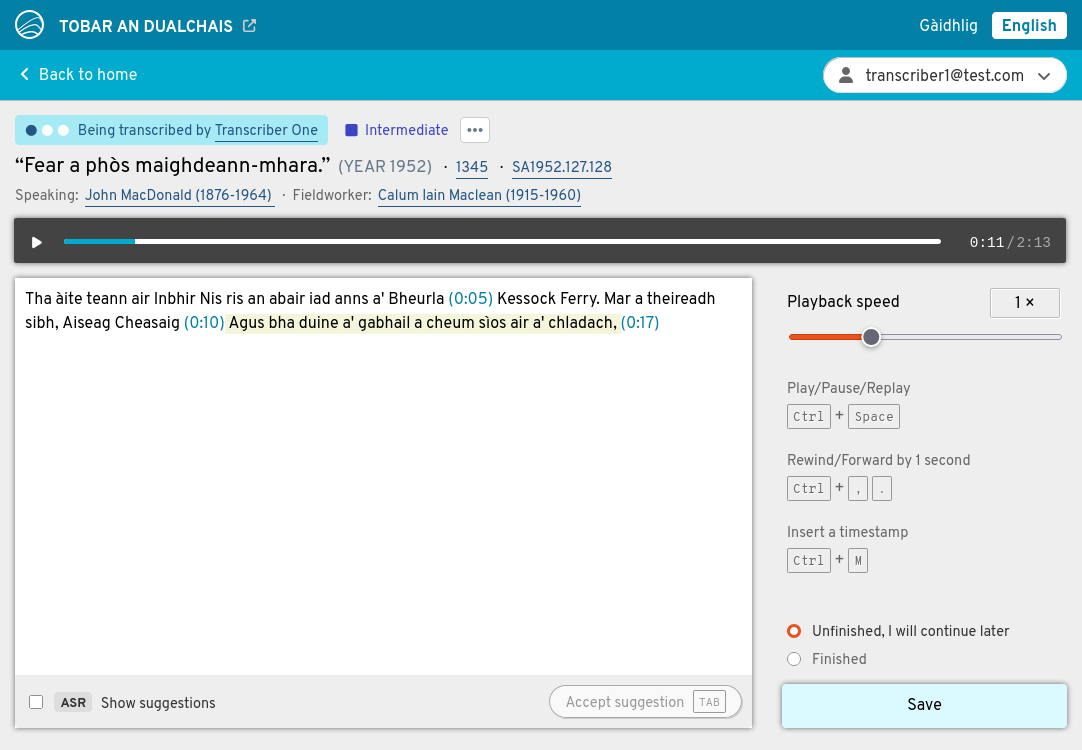
During playback, you will see that the segment currently being played is highlighted in the transcribed text, and the highlighting moves from segment to segment as the playback proceeds – almost like in karaoke!
A word about spelling and punctuation
The transcriptions you are producing will have a dual purpose. On one hand, they will help people understand and enjoy the recordings on the main Tobar an Dualchais website. On the other hand, they will be used to train Gaelic language technology such as automatic speech recognition. Because of this, it is important to transcribe the words of the speakers exactly how you hear them, without correcting grammatical errors and without “overstandardising” dialectal words.
We understand that this is sometimes easier said than done, so we have put together a detailed styleguide which you can consult when in doubt: ÈIST Transcription Manual.
In general, it is a good idea not to worry too much about the finer points of spelling and punctuation. All transcriptions by volunteers such as youself will be checked and if necessary corrected by professional linguists. Your role is to write down as honestly as posssible what you believe you hear.
Getting help from automatic speech recognition
Automatic Speech Recognition (ASR) is a technology which can help you type faster by giving you suggestions. To turn this feature on, tick the Show suggestions option at the bottom of the white text box.
When the ASR feature is on, you will see suggestions appearing, word by word, as playback progresses. The suggestions are shown in a light grey font. Suggestions will be right sometimes and wrong sometimes: they are an impression if what the machine “thinks” it hears.

If the suggestion seems mostly right, you can accept it by pressing Tab. This stops the playback and inserts a timestamp. You can now go back and edit the segment – or even overwrite it completely – before you continue.
It is important not to trust the ASR suggestions too much. If you are not sure what you are hearing, do not just blindly accept what the ASR is suggesting. A recording which is difficult for you is bound to be even more difficult for the machine, and the suggestions are more likely to be wrong. The rule of thumb is: use ASR to save you time typing, not to help you understand what you are hearing.
Saving and finishing your work
It is important to save your transcription every now and then by clicking the big Save button at the bottom right of the screen. This is like saving documents in your word processor on your computer: you will lose your work if you don’t.
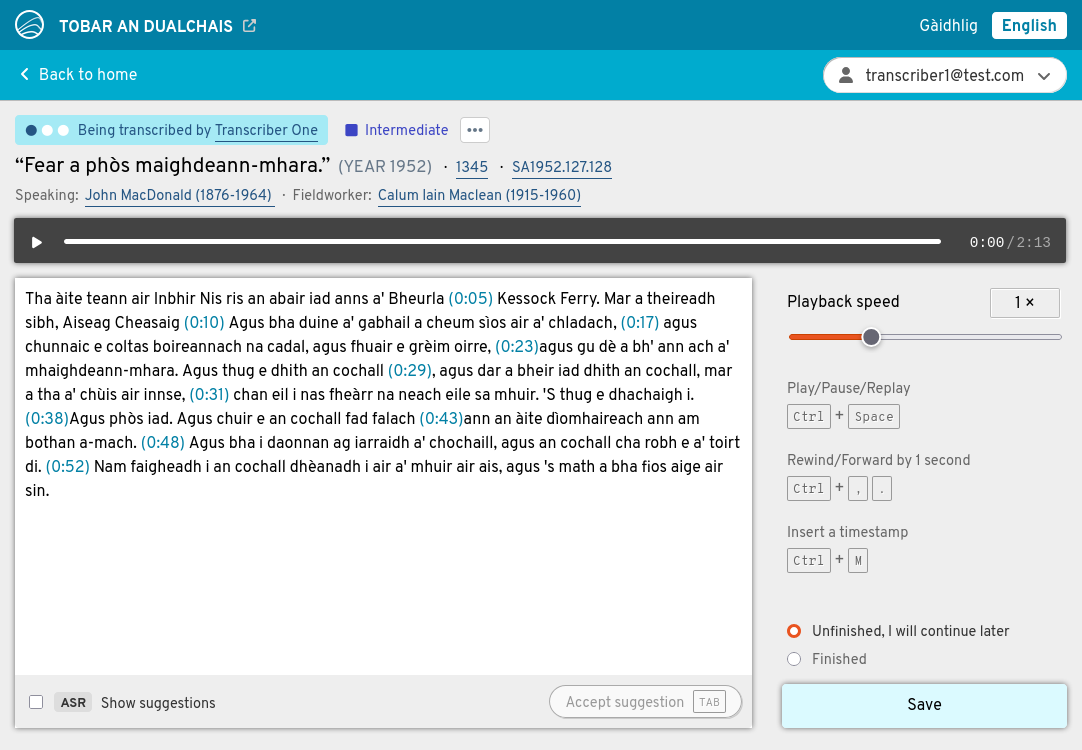
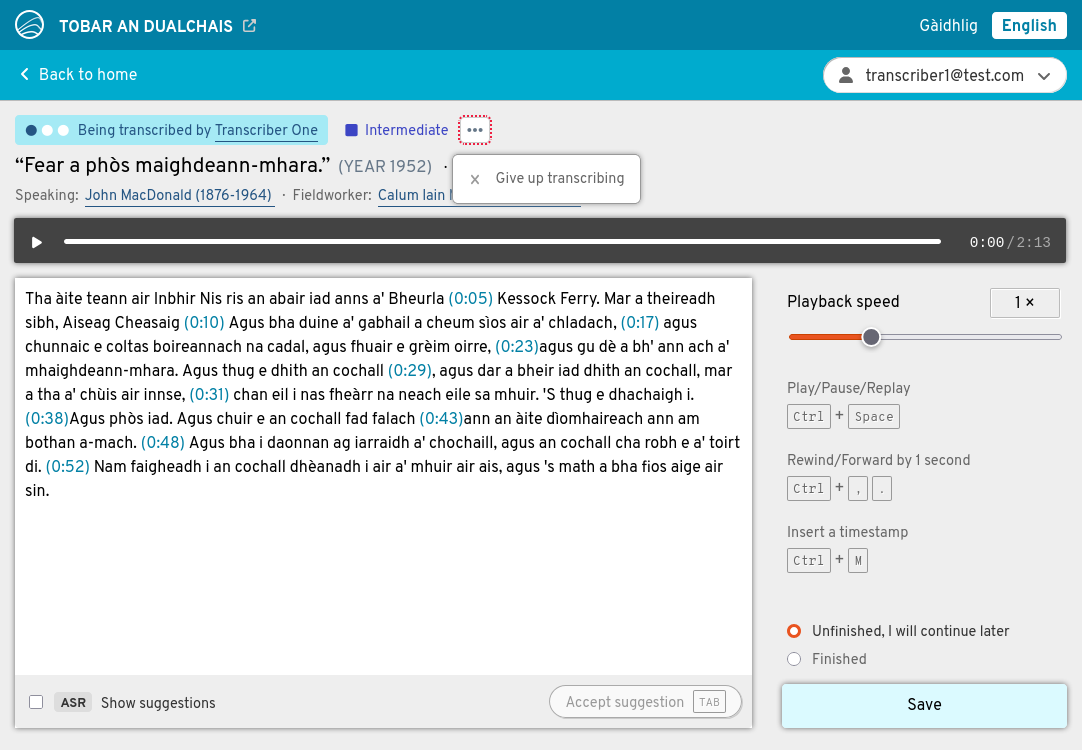
Remember that when a recording is assigned to you, no-one else is able to work on it. If for any reason you want to abandon working on a recording, you should return it to the pool of available recordings by selecting Give up transcribing from the pop-up menu at the top of the screen.
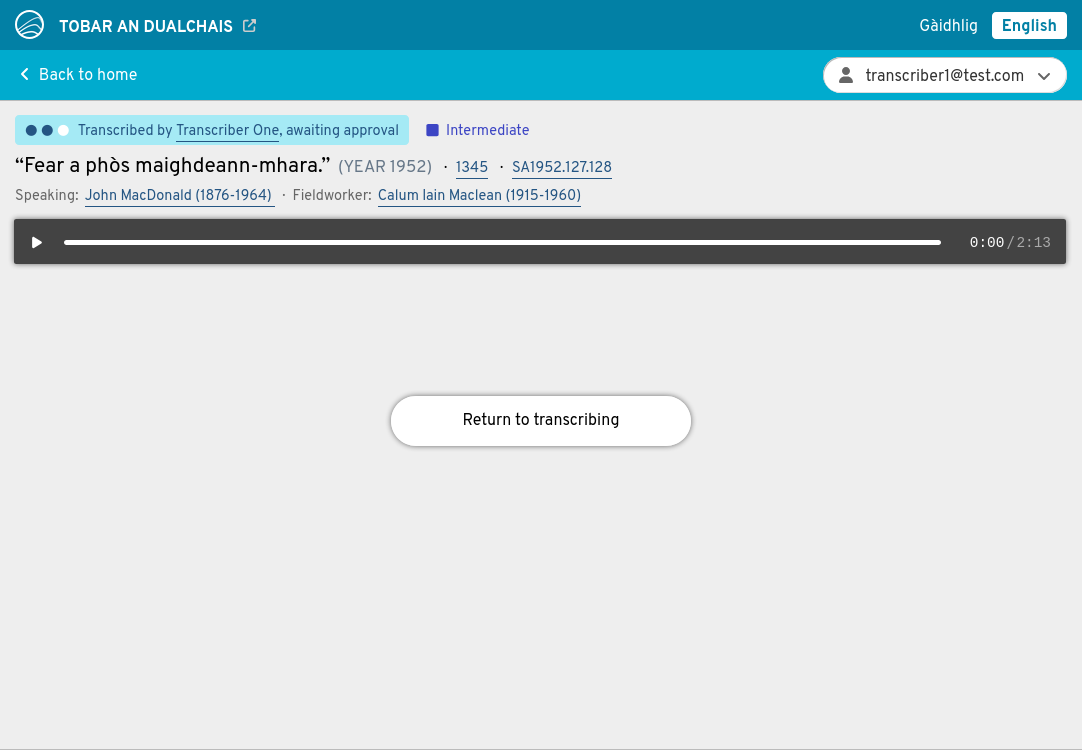
When your transcription is finished, simply select the Finished option above the Save button, and click the Save button. The status of your transcription will now change to awaiting approval. This means that somebody from the administration team will soon review your transcription, make any necessary corrections, and eventually approve it. Once that is done, the status will change to approved and, from this moment, your transcription will be publicly available.